

Note
Go to the end to download the full example code.
Store and retrieve reports on Skore Hub#
This example shows how to use Project in hub mode: store
reports remotely and inspect them. A key point is that
summarize() returns a Summary object that
holds the metadata and metrics of every report. In Jupyter it renders as an
interactive table with different views where you can filter and pick rows to
build a query string; outside of Jupyter you can work with the underlying
pandas.DataFrame via its frame() method.
Examples#
To run this example and push in your own Skore Hub workspace and project, you can run this example with the following command:
WORKSPACE=<workspace> PROJECT=<project> python plot_skore_hub_project.py
In this gallery, we are going to push the different reports into a public workspace.
skore can communicate with Skore Hub which serves two main purposes: storing and
retrieving any reports that you created and a user-friendly interface for you to
explore and compare models.
First, we need to login to Skore Hub such that later we can push our reports to it.
╭───────────────────────────────── Login to Skore Hub ─────────────────────────────────╮
│                                                                                      │
│                        Successfully logged in, using API key.                        │
│                                                                                      │
╰──────────────────────────────────────────────────────────────────────────────────────╯
To illustrate the integration with Skore Hub, we use a binary classification task where the goal is to predict whether a patient has a tumor or not.
import numpy as np
import skrub
from sklearn.datasets import load_breast_cancer

X, y = load_breast_cancer(return_X_y=True, as_frame=True)
labels = np.array(["no tumor", "tumor"], dtype=object)
y = labels[y]
skrub.TableReport(X)
| mean radius | mean texture | mean perimeter | mean area | mean smoothness | mean compactness | mean concavity | mean concave points | mean symmetry | mean fractal dimension | radius error | texture error | perimeter error | area error | smoothness error | compactness error | concavity error | concave points error | symmetry error | fractal dimension error | worst radius | worst texture | worst perimeter | worst area | worst smoothness | worst compactness | worst concavity | worst concave points | worst symmetry | worst fractal dimension | |
|---|---|---|---|---|---|---|---|---|---|---|---|---|---|---|---|---|---|---|---|---|---|---|---|---|---|---|---|---|---|---|
| 0 | 18.0 | 10.4 | 123. | 1.00e+03 | 0.118 | 0.278 | 0.300 | 0.147 | 0.242 | 0.0787 | 1.09 | 0.905 | 8.59 | 153. | 0.00640 | 0.0490 | 0.0537 | 0.0159 | 0.0300 | 0.00619 | 25.4 | 17.3 | 185. | 2.02e+03 | 0.162 | 0.666 | 0.712 | 0.265 | 0.460 | 0.119 |
| 1 | 20.6 | 17.8 | 133. | 1.33e+03 | 0.0847 | 0.0786 | 0.0869 | 0.0702 | 0.181 | 0.0567 | 0.543 | 0.734 | 3.40 | 74.1 | 0.00522 | 0.0131 | 0.0186 | 0.0134 | 0.0139 | 0.00353 | 25.0 | 23.4 | 159. | 1.96e+03 | 0.124 | 0.187 | 0.242 | 0.186 | 0.275 | 0.0890 |
| 2 | 19.7 | 21.2 | 130. | 1.20e+03 | 0.110 | 0.160 | 0.197 | 0.128 | 0.207 | 0.0600 | 0.746 | 0.787 | 4.58 | 94.0 | 0.00615 | 0.0401 | 0.0383 | 0.0206 | 0.0225 | 0.00457 | 23.6 | 25.5 | 152. | 1.71e+03 | 0.144 | 0.424 | 0.450 | 0.243 | 0.361 | 0.0876 |
| 3 | 11.4 | 20.4 | 77.6 | 386. | 0.142 | 0.284 | 0.241 | 0.105 | 0.260 | 0.0974 | 0.496 | 1.16 | 3.44 | 27.2 | 0.00911 | 0.0746 | 0.0566 | 0.0187 | 0.0596 | 0.00921 | 14.9 | 26.5 | 98.9 | 568. | 0.210 | 0.866 | 0.687 | 0.258 | 0.664 | 0.173 |
| 4 | 20.3 | 14.3 | 135. | 1.30e+03 | 0.100 | 0.133 | 0.198 | 0.104 | 0.181 | 0.0588 | 0.757 | 0.781 | 5.44 | 94.4 | 0.0115 | 0.0246 | 0.0569 | 0.0188 | 0.0176 | 0.00511 | 22.5 | 16.7 | 152. | 1.58e+03 | 0.137 | 0.205 | 0.400 | 0.163 | 0.236 | 0.0768 |
| 564 | 21.6 | 22.4 | 142. | 1.48e+03 | 0.111 | 0.116 | 0.244 | 0.139 | 0.173 | 0.0562 | 1.18 | 1.26 | 7.67 | 159. | 0.0103 | 0.0289 | 0.0520 | 0.0245 | 0.0111 | 0.00424 | 25.4 | 26.4 | 166. | 2.03e+03 | 0.141 | 0.211 | 0.411 | 0.222 | 0.206 | 0.0712 |
| 565 | 20.1 | 28.2 | 131. | 1.26e+03 | 0.0978 | 0.103 | 0.144 | 0.0979 | 0.175 | 0.0553 | 0.765 | 2.46 | 5.20 | 99.0 | 0.00577 | 0.0242 | 0.0395 | 0.0168 | 0.0190 | 0.00250 | 23.7 | 38.2 | 155. | 1.73e+03 | 0.117 | 0.192 | 0.322 | 0.163 | 0.257 | 0.0664 |
| 566 | 16.6 | 28.1 | 108. | 858. | 0.0846 | 0.102 | 0.0925 | 0.0530 | 0.159 | 0.0565 | 0.456 | 1.07 | 3.42 | 48.5 | 0.00590 | 0.0373 | 0.0473 | 0.0156 | 0.0132 | 0.00389 | 19.0 | 34.1 | 127. | 1.12e+03 | 0.114 | 0.309 | 0.340 | 0.142 | 0.222 | 0.0782 |
| 567 | 20.6 | 29.3 | 140. | 1.26e+03 | 0.118 | 0.277 | 0.351 | 0.152 | 0.240 | 0.0702 | 0.726 | 1.59 | 5.77 | 86.2 | 0.00652 | 0.0616 | 0.0712 | 0.0166 | 0.0232 | 0.00619 | 25.7 | 39.4 | 185. | 1.82e+03 | 0.165 | 0.868 | 0.939 | 0.265 | 0.409 | 0.124 |
| 568 | 7.76 | 24.5 | 47.9 | 181. | 0.0526 | 0.0436 | 0.00 | 0.00 | 0.159 | 0.0588 | 0.386 | 1.43 | 2.55 | 19.1 | 0.00719 | 0.00466 | 0.00 | 0.00 | 0.0268 | 0.00278 | 9.46 | 30.4 | 59.2 | 269. | 0.0900 | 0.0644 | 0.00 | 0.00 | 0.287 | 0.0704 |
mean radius
Float64DType- Null values
- 0 (0.0%)
- Unique values
-
456 (80.1%)
This column has a high cardinality (> 40).
- Mean ± Std
- 14.1 ± 3.52
- Median ± IQR
- 13.4 ± 4.08
- Min | Max
- 6.98 | 28.1
mean texture
Float64DType- Null values
- 0 (0.0%)
- Unique values
-
479 (84.2%)
This column has a high cardinality (> 40).
- Mean ± Std
- 19.3 ± 4.30
- Median ± IQR
- 18.8 ± 5.63
- Min | Max
- 9.71 | 39.3
mean perimeter
Float64DType- Null values
- 0 (0.0%)
- Unique values
-
522 (91.7%)
This column has a high cardinality (> 40).
- Mean ± Std
- 92.0 ± 24.3
- Median ± IQR
- 86.2 ± 28.9
- Min | Max
- 43.8 | 188.
mean area
Float64DType- Null values
- 0 (0.0%)
- Unique values
-
539 (94.7%)
This column has a high cardinality (> 40).
- Mean ± Std
- 655. ± 352.
- Median ± IQR
- 551. ± 362.
- Min | Max
- 144. | 2.50e+03
mean smoothness
Float64DType- Null values
- 0 (0.0%)
- Unique values
-
474 (83.3%)
This column has a high cardinality (> 40).
- Mean ± Std
- 0.0964 ± 0.0141
- Median ± IQR
- 0.0959 ± 0.0189
- Min | Max
- 0.0526 | 0.163
mean compactness
Float64DType- Null values
- 0 (0.0%)
- Unique values
-
537 (94.4%)
This column has a high cardinality (> 40).
- Mean ± Std
- 0.104 ± 0.0528
- Median ± IQR
- 0.0926 ± 0.0655
- Min | Max
- 0.0194 | 0.345
mean concavity
Float64DType- Null values
- 0 (0.0%)
- Unique values
-
537 (94.4%)
This column has a high cardinality (> 40).
- Mean ± Std
- 0.0888 ± 0.0797
- Median ± IQR
- 0.0615 ± 0.101
- Min | Max
- 0.00 | 0.427
mean concave points
Float64DType- Null values
- 0 (0.0%)
- Unique values
-
542 (95.3%)
This column has a high cardinality (> 40).
- Mean ± Std
- 0.0489 ± 0.0388
- Median ± IQR
- 0.0335 ± 0.0537
- Min | Max
- 0.00 | 0.201
mean symmetry
Float64DType- Null values
- 0 (0.0%)
- Unique values
-
432 (75.9%)
This column has a high cardinality (> 40).
- Mean ± Std
- 0.181 ± 0.0274
- Median ± IQR
- 0.179 ± 0.0338
- Min | Max
- 0.106 | 0.304
mean fractal dimension
Float64DType- Null values
- 0 (0.0%)
- Unique values
-
499 (87.7%)
This column has a high cardinality (> 40).
- Mean ± Std
- 0.0628 ± 0.00706
- Median ± IQR
- 0.0615 ± 0.00842
- Min | Max
- 0.0500 | 0.0974
radius error
Float64DType- Null values
- 0 (0.0%)
- Unique values
-
540 (94.9%)
This column has a high cardinality (> 40).
- Mean ± Std
- 0.405 ± 0.277
- Median ± IQR
- 0.324 ± 0.246
- Min | Max
- 0.112 | 2.87
texture error
Float64DType- Null values
- 0 (0.0%)
- Unique values
-
519 (91.2%)
This column has a high cardinality (> 40).
- Mean ± Std
- 1.22 ± 0.552
- Median ± IQR
- 1.11 ± 0.640
- Min | Max
- 0.360 | 4.88
perimeter error
Float64DType- Null values
- 0 (0.0%)
- Unique values
-
533 (93.7%)
This column has a high cardinality (> 40).
- Mean ± Std
- 2.87 ± 2.02
- Median ± IQR
- 2.29 ± 1.75
- Min | Max
- 0.757 | 22.0
area error
Float64DType- Null values
- 0 (0.0%)
- Unique values
-
528 (92.8%)
This column has a high cardinality (> 40).
- Mean ± Std
- 40.3 ± 45.5
- Median ± IQR
- 24.5 ± 27.3
- Min | Max
- 6.80 | 542.
smoothness error
Float64DType- Null values
- 0 (0.0%)
- Unique values
-
547 (96.1%)
This column has a high cardinality (> 40).
- Mean ± Std
- 0.00704 ± 0.00300
- Median ± IQR
- 0.00638 ± 0.00298
- Min | Max
- 0.00171 | 0.0311
compactness error
Float64DType- Null values
- 0 (0.0%)
- Unique values
-
541 (95.1%)
This column has a high cardinality (> 40).
- Mean ± Std
- 0.0255 ± 0.0179
- Median ± IQR
- 0.0204 ± 0.0194
- Min | Max
- 0.00225 | 0.135
concavity error
Float64DType- Null values
- 0 (0.0%)
- Unique values
-
533 (93.7%)
This column has a high cardinality (> 40).
- Mean ± Std
- 0.0319 ± 0.0302
- Median ± IQR
- 0.0259 ± 0.0270
- Min | Max
- 0.00 | 0.396
concave points error
Float64DType- Null values
- 0 (0.0%)
- Unique values
-
507 (89.1%)
This column has a high cardinality (> 40).
- Mean ± Std
- 0.0118 ± 0.00617
- Median ± IQR
- 0.0109 ± 0.00707
- Min | Max
- 0.00 | 0.0528
symmetry error
Float64DType- Null values
- 0 (0.0%)
- Unique values
-
498 (87.5%)
This column has a high cardinality (> 40).
- Mean ± Std
- 0.0205 ± 0.00827
- Median ± IQR
- 0.0187 ± 0.00832
- Min | Max
- 0.00788 | 0.0790
fractal dimension error
Float64DType- Null values
- 0 (0.0%)
- Unique values
-
545 (95.8%)
This column has a high cardinality (> 40).
- Mean ± Std
- 0.00379 ± 0.00265
- Median ± IQR
- 0.00319 ± 0.00231
- Min | Max
- 0.000895 | 0.0298
worst radius
Float64DType- Null values
- 0 (0.0%)
- Unique values
-
457 (80.3%)
This column has a high cardinality (> 40).
- Mean ± Std
- 16.3 ± 4.83
- Median ± IQR
- 15.0 ± 5.78
- Min | Max
- 7.93 | 36.0
worst texture
Float64DType- Null values
- 0 (0.0%)
- Unique values
-
511 (89.8%)
This column has a high cardinality (> 40).
- Mean ± Std
- 25.7 ± 6.15
- Median ± IQR
- 25.4 ± 8.64
- Min | Max
- 12.0 | 49.5
worst perimeter
Float64DType- Null values
- 0 (0.0%)
- Unique values
-
514 (90.3%)
This column has a high cardinality (> 40).
- Mean ± Std
- 107. ± 33.6
- Median ± IQR
- 97.7 ± 41.3
- Min | Max
- 50.4 | 251.
worst area
Float64DType- Null values
- 0 (0.0%)
- Unique values
-
544 (95.6%)
This column has a high cardinality (> 40).
- Mean ± Std
- 881. ± 569.
- Median ± IQR
- 686. ± 569.
- Min | Max
- 185. | 4.25e+03
worst smoothness
Float64DType- Null values
- 0 (0.0%)
- Unique values
-
411 (72.2%)
This column has a high cardinality (> 40).
- Mean ± Std
- 0.132 ± 0.0228
- Median ± IQR
- 0.131 ± 0.0294
- Min | Max
- 0.0712 | 0.223
worst compactness
Float64DType- Null values
- 0 (0.0%)
- Unique values
-
529 (93.0%)
This column has a high cardinality (> 40).
- Mean ± Std
- 0.254 ± 0.157
- Median ± IQR
- 0.212 ± 0.192
- Min | Max
- 0.0273 | 1.06
worst concavity
Float64DType- Null values
- 0 (0.0%)
- Unique values
-
539 (94.7%)
This column has a high cardinality (> 40).
- Mean ± Std
- 0.272 ± 0.209
- Median ± IQR
- 0.227 ± 0.268
- Min | Max
- 0.00 | 1.25
worst concave points
Float64DType- Null values
- 0 (0.0%)
- Unique values
-
492 (86.5%)
This column has a high cardinality (> 40).
- Mean ± Std
- 0.115 ± 0.0657
- Median ± IQR
- 0.0999 ± 0.0965
- Min | Max
- 0.00 | 0.291
worst symmetry
Float64DType- Null values
- 0 (0.0%)
- Unique values
-
500 (87.9%)
This column has a high cardinality (> 40).
- Mean ± Std
- 0.290 ± 0.0619
- Median ± IQR
- 0.282 ± 0.0675
- Min | Max
- 0.157 | 0.664
worst fractal dimension
Float64DType- Null values
- 0 (0.0%)
- Unique values
-
535 (94.0%)
This column has a high cardinality (> 40).
- Mean ± Std
- 0.0839 ± 0.0181
- Median ± IQR
- 0.0800 ± 0.0206
- Min | Max
- 0.0550 | 0.207
No columns match the selected filter: . You can change the column filter in the dropdown menu above.
| Column | Column name | dtype | Is sorted | Null values | Unique values | Mean | Std | Min | Median | Max |
|---|---|---|---|---|---|---|---|---|---|---|
| 0 | mean radius | Float64DType | False | 0 (0.0%) | 456 (80.1%) | 14.1 | 3.52 | 6.98 | 13.4 | 28.1 |
| 1 | mean texture | Float64DType | False | 0 (0.0%) | 479 (84.2%) | 19.3 | 4.30 | 9.71 | 18.8 | 39.3 |
| 2 | mean perimeter | Float64DType | False | 0 (0.0%) | 522 (91.7%) | 92.0 | 24.3 | 43.8 | 86.2 | 188. |
| 3 | mean area | Float64DType | False | 0 (0.0%) | 539 (94.7%) | 655. | 352. | 144. | 551. | 2.50e+03 |
| 4 | mean smoothness | Float64DType | False | 0 (0.0%) | 474 (83.3%) | 0.0964 | 0.0141 | 0.0526 | 0.0959 | 0.163 |
| 5 | mean compactness | Float64DType | False | 0 (0.0%) | 537 (94.4%) | 0.104 | 0.0528 | 0.0194 | 0.0926 | 0.345 |
| 6 | mean concavity | Float64DType | False | 0 (0.0%) | 537 (94.4%) | 0.0888 | 0.0797 | 0.00 | 0.0615 | 0.427 |
| 7 | mean concave points | Float64DType | False | 0 (0.0%) | 542 (95.3%) | 0.0489 | 0.0388 | 0.00 | 0.0335 | 0.201 |
| 8 | mean symmetry | Float64DType | False | 0 (0.0%) | 432 (75.9%) | 0.181 | 0.0274 | 0.106 | 0.179 | 0.304 |
| 9 | mean fractal dimension | Float64DType | False | 0 (0.0%) | 499 (87.7%) | 0.0628 | 0.00706 | 0.0500 | 0.0615 | 0.0974 |
| 10 | radius error | Float64DType | False | 0 (0.0%) | 540 (94.9%) | 0.405 | 0.277 | 0.112 | 0.324 | 2.87 |
| 11 | texture error | Float64DType | False | 0 (0.0%) | 519 (91.2%) | 1.22 | 0.552 | 0.360 | 1.11 | 4.88 |
| 12 | perimeter error | Float64DType | False | 0 (0.0%) | 533 (93.7%) | 2.87 | 2.02 | 0.757 | 2.29 | 22.0 |
| 13 | area error | Float64DType | False | 0 (0.0%) | 528 (92.8%) | 40.3 | 45.5 | 6.80 | 24.5 | 542. |
| 14 | smoothness error | Float64DType | False | 0 (0.0%) | 547 (96.1%) | 0.00704 | 0.00300 | 0.00171 | 0.00638 | 0.0311 |
| 15 | compactness error | Float64DType | False | 0 (0.0%) | 541 (95.1%) | 0.0255 | 0.0179 | 0.00225 | 0.0204 | 0.135 |
| 16 | concavity error | Float64DType | False | 0 (0.0%) | 533 (93.7%) | 0.0319 | 0.0302 | 0.00 | 0.0259 | 0.396 |
| 17 | concave points error | Float64DType | False | 0 (0.0%) | 507 (89.1%) | 0.0118 | 0.00617 | 0.00 | 0.0109 | 0.0528 |
| 18 | symmetry error | Float64DType | False | 0 (0.0%) | 498 (87.5%) | 0.0205 | 0.00827 | 0.00788 | 0.0187 | 0.0790 |
| 19 | fractal dimension error | Float64DType | False | 0 (0.0%) | 545 (95.8%) | 0.00379 | 0.00265 | 0.000895 | 0.00319 | 0.0298 |
| 20 | worst radius | Float64DType | False | 0 (0.0%) | 457 (80.3%) | 16.3 | 4.83 | 7.93 | 15.0 | 36.0 |
| 21 | worst texture | Float64DType | False | 0 (0.0%) | 511 (89.8%) | 25.7 | 6.15 | 12.0 | 25.4 | 49.5 |
| 22 | worst perimeter | Float64DType | False | 0 (0.0%) | 514 (90.3%) | 107. | 33.6 | 50.4 | 97.7 | 251. |
| 23 | worst area | Float64DType | False | 0 (0.0%) | 544 (95.6%) | 881. | 569. | 185. | 686. | 4.25e+03 |
| 24 | worst smoothness | Float64DType | False | 0 (0.0%) | 411 (72.2%) | 0.132 | 0.0228 | 0.0712 | 0.131 | 0.223 |
| 25 | worst compactness | Float64DType | False | 0 (0.0%) | 529 (93.0%) | 0.254 | 0.157 | 0.0273 | 0.212 | 1.06 |
| 26 | worst concavity | Float64DType | False | 0 (0.0%) | 539 (94.7%) | 0.272 | 0.209 | 0.00 | 0.227 | 1.25 |
| 27 | worst concave points | Float64DType | False | 0 (0.0%) | 492 (86.5%) | 0.115 | 0.0657 | 0.00 | 0.0999 | 0.291 |
| 28 | worst symmetry | Float64DType | False | 0 (0.0%) | 500 (87.9%) | 0.290 | 0.0619 | 0.157 | 0.282 | 0.664 |
| 29 | worst fractal dimension | Float64DType | False | 0 (0.0%) | 535 (94.0%) | 0.0839 | 0.0181 | 0.0550 | 0.0800 | 0.207 |
No columns match the selected filter: . You can change the column filter in the dropdown menu above.
mean radius
Float64DType- Null values
- 0 (0.0%)
- Unique values
-
456 (80.1%)
This column has a high cardinality (> 40).
- Mean ± Std
- 14.1 ± 3.52
- Median ± IQR
- 13.4 ± 4.08
- Min | Max
- 6.98 | 28.1
mean texture
Float64DType- Null values
- 0 (0.0%)
- Unique values
-
479 (84.2%)
This column has a high cardinality (> 40).
- Mean ± Std
- 19.3 ± 4.30
- Median ± IQR
- 18.8 ± 5.63
- Min | Max
- 9.71 | 39.3
mean perimeter
Float64DType- Null values
- 0 (0.0%)
- Unique values
-
522 (91.7%)
This column has a high cardinality (> 40).
- Mean ± Std
- 92.0 ± 24.3
- Median ± IQR
- 86.2 ± 28.9
- Min | Max
- 43.8 | 188.
mean area
Float64DType- Null values
- 0 (0.0%)
- Unique values
-
539 (94.7%)
This column has a high cardinality (> 40).
- Mean ± Std
- 655. ± 352.
- Median ± IQR
- 551. ± 362.
- Min | Max
- 144. | 2.50e+03
mean smoothness
Float64DType- Null values
- 0 (0.0%)
- Unique values
-
474 (83.3%)
This column has a high cardinality (> 40).
- Mean ± Std
- 0.0964 ± 0.0141
- Median ± IQR
- 0.0959 ± 0.0189
- Min | Max
- 0.0526 | 0.163
mean compactness
Float64DType- Null values
- 0 (0.0%)
- Unique values
-
537 (94.4%)
This column has a high cardinality (> 40).
- Mean ± Std
- 0.104 ± 0.0528
- Median ± IQR
- 0.0926 ± 0.0655
- Min | Max
- 0.0194 | 0.345
mean concavity
Float64DType- Null values
- 0 (0.0%)
- Unique values
-
537 (94.4%)
This column has a high cardinality (> 40).
- Mean ± Std
- 0.0888 ± 0.0797
- Median ± IQR
- 0.0615 ± 0.101
- Min | Max
- 0.00 | 0.427
mean concave points
Float64DType- Null values
- 0 (0.0%)
- Unique values
-
542 (95.3%)
This column has a high cardinality (> 40).
- Mean ± Std
- 0.0489 ± 0.0388
- Median ± IQR
- 0.0335 ± 0.0537
- Min | Max
- 0.00 | 0.201
mean symmetry
Float64DType- Null values
- 0 (0.0%)
- Unique values
-
432 (75.9%)
This column has a high cardinality (> 40).
- Mean ± Std
- 0.181 ± 0.0274
- Median ± IQR
- 0.179 ± 0.0338
- Min | Max
- 0.106 | 0.304
mean fractal dimension
Float64DType- Null values
- 0 (0.0%)
- Unique values
-
499 (87.7%)
This column has a high cardinality (> 40).
- Mean ± Std
- 0.0628 ± 0.00706
- Median ± IQR
- 0.0615 ± 0.00842
- Min | Max
- 0.0500 | 0.0974
radius error
Float64DType- Null values
- 0 (0.0%)
- Unique values
-
540 (94.9%)
This column has a high cardinality (> 40).
- Mean ± Std
- 0.405 ± 0.277
- Median ± IQR
- 0.324 ± 0.246
- Min | Max
- 0.112 | 2.87
texture error
Float64DType- Null values
- 0 (0.0%)
- Unique values
-
519 (91.2%)
This column has a high cardinality (> 40).
- Mean ± Std
- 1.22 ± 0.552
- Median ± IQR
- 1.11 ± 0.640
- Min | Max
- 0.360 | 4.88
perimeter error
Float64DType- Null values
- 0 (0.0%)
- Unique values
-
533 (93.7%)
This column has a high cardinality (> 40).
- Mean ± Std
- 2.87 ± 2.02
- Median ± IQR
- 2.29 ± 1.75
- Min | Max
- 0.757 | 22.0
area error
Float64DType- Null values
- 0 (0.0%)
- Unique values
-
528 (92.8%)
This column has a high cardinality (> 40).
- Mean ± Std
- 40.3 ± 45.5
- Median ± IQR
- 24.5 ± 27.3
- Min | Max
- 6.80 | 542.
smoothness error
Float64DType- Null values
- 0 (0.0%)
- Unique values
-
547 (96.1%)
This column has a high cardinality (> 40).
- Mean ± Std
- 0.00704 ± 0.00300
- Median ± IQR
- 0.00638 ± 0.00298
- Min | Max
- 0.00171 | 0.0311
compactness error
Float64DType- Null values
- 0 (0.0%)
- Unique values
-
541 (95.1%)
This column has a high cardinality (> 40).
- Mean ± Std
- 0.0255 ± 0.0179
- Median ± IQR
- 0.0204 ± 0.0194
- Min | Max
- 0.00225 | 0.135
concavity error
Float64DType- Null values
- 0 (0.0%)
- Unique values
-
533 (93.7%)
This column has a high cardinality (> 40).
- Mean ± Std
- 0.0319 ± 0.0302
- Median ± IQR
- 0.0259 ± 0.0270
- Min | Max
- 0.00 | 0.396
concave points error
Float64DType- Null values
- 0 (0.0%)
- Unique values
-
507 (89.1%)
This column has a high cardinality (> 40).
- Mean ± Std
- 0.0118 ± 0.00617
- Median ± IQR
- 0.0109 ± 0.00707
- Min | Max
- 0.00 | 0.0528
symmetry error
Float64DType- Null values
- 0 (0.0%)
- Unique values
-
498 (87.5%)
This column has a high cardinality (> 40).
- Mean ± Std
- 0.0205 ± 0.00827
- Median ± IQR
- 0.0187 ± 0.00832
- Min | Max
- 0.00788 | 0.0790
fractal dimension error
Float64DType- Null values
- 0 (0.0%)
- Unique values
-
545 (95.8%)
This column has a high cardinality (> 40).
- Mean ± Std
- 0.00379 ± 0.00265
- Median ± IQR
- 0.00319 ± 0.00231
- Min | Max
- 0.000895 | 0.0298
worst radius
Float64DType- Null values
- 0 (0.0%)
- Unique values
-
457 (80.3%)
This column has a high cardinality (> 40).
- Mean ± Std
- 16.3 ± 4.83
- Median ± IQR
- 15.0 ± 5.78
- Min | Max
- 7.93 | 36.0
worst texture
Float64DType- Null values
- 0 (0.0%)
- Unique values
-
511 (89.8%)
This column has a high cardinality (> 40).
- Mean ± Std
- 25.7 ± 6.15
- Median ± IQR
- 25.4 ± 8.64
- Min | Max
- 12.0 | 49.5
worst perimeter
Float64DType- Null values
- 0 (0.0%)
- Unique values
-
514 (90.3%)
This column has a high cardinality (> 40).
- Mean ± Std
- 107. ± 33.6
- Median ± IQR
- 97.7 ± 41.3
- Min | Max
- 50.4 | 251.
worst area
Float64DType- Null values
- 0 (0.0%)
- Unique values
-
544 (95.6%)
This column has a high cardinality (> 40).
- Mean ± Std
- 881. ± 569.
- Median ± IQR
- 686. ± 569.
- Min | Max
- 185. | 4.25e+03
worst smoothness
Float64DType- Null values
- 0 (0.0%)
- Unique values
-
411 (72.2%)
This column has a high cardinality (> 40).
- Mean ± Std
- 0.132 ± 0.0228
- Median ± IQR
- 0.131 ± 0.0294
- Min | Max
- 0.0712 | 0.223
worst compactness
Float64DType- Null values
- 0 (0.0%)
- Unique values
-
529 (93.0%)
This column has a high cardinality (> 40).
- Mean ± Std
- 0.254 ± 0.157
- Median ± IQR
- 0.212 ± 0.192
- Min | Max
- 0.0273 | 1.06
worst concavity
Float64DType- Null values
- 0 (0.0%)
- Unique values
-
539 (94.7%)
This column has a high cardinality (> 40).
- Mean ± Std
- 0.272 ± 0.209
- Median ± IQR
- 0.227 ± 0.268
- Min | Max
- 0.00 | 1.25
worst concave points
Float64DType- Null values
- 0 (0.0%)
- Unique values
-
492 (86.5%)
This column has a high cardinality (> 40).
- Mean ± Std
- 0.115 ± 0.0657
- Median ± IQR
- 0.0999 ± 0.0965
- Min | Max
- 0.00 | 0.291
worst symmetry
Float64DType- Null values
- 0 (0.0%)
- Unique values
-
500 (87.9%)
This column has a high cardinality (> 40).
- Mean ± Std
- 0.290 ± 0.0619
- Median ± IQR
- 0.282 ± 0.0675
- Min | Max
- 0.157 | 0.664
worst fractal dimension
Float64DType- Null values
- 0 (0.0%)
- Unique values
-
535 (94.0%)
This column has a high cardinality (> 40).
- Mean ± Std
- 0.0839 ± 0.0181
- Median ± IQR
- 0.0800 ± 0.0206
- Min | Max
- 0.0550 | 0.207
No columns match the selected filter: . You can change the column filter in the dropdown menu above.
| Column 1 | Column 2 | Cramér's V | Pearson's Correlation |
|---|---|---|---|
| mean radius | mean perimeter | 0.846 | 0.998 |
| mean radius | mean area | 0.800 | 0.987 |
| radius error | perimeter error | 0.768 | 0.973 |
| worst radius | worst perimeter | 0.757 | 0.994 |
| mean perimeter | mean area | 0.754 | 0.987 |
| radius error | area error | 0.732 | 0.952 |
| area error | worst area | 0.699 | 0.811 |
| perimeter error | area error | 0.687 | 0.938 |
| worst radius | worst area | 0.676 | 0.984 |
| worst perimeter | worst area | 0.662 | 0.978 |
| mean area | area error | 0.652 | 0.800 |
| mean perimeter | worst radius | 0.643 | 0.969 |
| mean area | worst radius | 0.640 | 0.963 |
| mean radius | worst radius | 0.635 | 0.970 |
| concavity error | concave points error | 0.628 | 0.772 |
| mean radius | area error | 0.626 | 0.736 |
| concavity error | fractal dimension error | 0.610 | 0.727 |
| worst compactness | worst concavity | 0.599 | 0.892 |
| mean area | worst perimeter | 0.596 | 0.959 |
| mean perimeter | area error | 0.594 | 0.745 |
| mean perimeter | worst perimeter | 0.592 | 0.970 |
| radius error | worst area | 0.574 | 0.752 |
| area error | worst perimeter | 0.573 | 0.761 |
| mean radius | worst perimeter | 0.570 | 0.965 |
| worst compactness | worst fractal dimension | 0.568 | 0.810 |
| mean radius | worst area | 0.567 | 0.941 |
| compactness error | fractal dimension error | 0.565 | 0.803 |
| area error | worst radius | 0.561 | 0.757 |
| mean area | worst area | 0.559 | 0.959 |
| perimeter error | worst area | 0.558 | 0.731 |
| mean texture | worst texture | 0.554 | 0.912 |
| mean perimeter | worst area | 0.553 | 0.942 |
| mean concave points | area error | 0.551 | 0.690 |
| mean concavity | mean concave points | 0.549 | 0.921 |
| compactness error | concavity error | 0.538 | 0.801 |
| mean area | radius error | 0.514 | 0.733 |
| concave points error | fractal dimension error | 0.511 | 0.611 |
| mean concave points | worst concave points | 0.507 | 0.910 |
| mean radius | radius error | 0.494 | 0.679 |
| worst concavity | worst fractal dimension | 0.487 | 0.687 |
| radius error | worst perimeter | 0.480 | 0.720 |
| mean perimeter | mean concave points | 0.476 | 0.851 |
| perimeter error | worst perimeter | 0.472 | 0.721 |
| mean compactness | worst compactness | 0.467 | 0.866 |
| mean area | perimeter error | 0.466 | 0.727 |
| mean fractal dimension | worst fractal dimension | 0.465 | 0.767 |
| mean perimeter | radius error | 0.465 | 0.692 |
| mean concave points | worst perimeter | 0.463 | 0.856 |
| mean area | mean concave points | 0.463 | 0.823 |
| worst symmetry | worst fractal dimension | 0.461 | 0.538 |
| mean smoothness | worst smoothness | 0.458 | 0.805 |
| mean radius | perimeter error | 0.457 | 0.674 |
| mean compactness | mean concavity | 0.456 | 0.883 |
| mean radius | mean concave points | 0.454 | 0.823 |
| mean concavity | worst concave points | 0.453 | 0.861 |
| mean concave points | radius error | 0.446 | 0.698 |
| radius error | worst radius | 0.445 | 0.715 |
| mean concave points | perimeter error | 0.444 | 0.711 |
| compactness error | concave points error | 0.443 | 0.744 |
| mean perimeter | perimeter error | 0.439 | 0.693 |
| mean fractal dimension | fractal dimension error | 0.439 | 0.688 |
| concavity error | worst concavity | 0.437 | 0.663 |
| mean concavity | worst concavity | 0.433 | 0.884 |
| perimeter error | worst radius | 0.426 | 0.697 |
| mean compactness | worst concavity | 0.423 | 0.816 |
| mean compactness | worst concave points | 0.423 | 0.816 |
| mean concavity | concavity error | 0.421 | 0.691 |
| mean concave points | worst area | 0.419 | 0.810 |
| mean concavity | area error | 0.416 | 0.617 |
| mean concave points | worst radius | 0.412 | 0.830 |
| mean compactness | mean concave points | 0.412 | 0.831 |
| worst perimeter | worst concave points | 0.408 | 0.816 |
| symmetry error | worst symmetry | 0.406 | 0.389 |
| worst concavity | worst concave points | 0.404 | 0.855 |
| perimeter error | concave points error | 0.401 | 0.556 |
| worst compactness | worst concave points | 0.394 | 0.801 |
| mean concavity | concave points error | 0.394 | 0.683 |
| mean concavity | radius error | 0.394 | 0.632 |
| mean concavity | worst perimeter | 0.393 | 0.730 |
| mean symmetry | worst symmetry | 0.393 | 0.700 |
| mean compactness | compactness error | 0.385 | 0.739 |
| worst radius | worst concave points | 0.385 | 0.787 |
| mean perimeter | mean concavity | 0.384 | 0.716 |
| mean concavity | perimeter error | 0.383 | 0.660 |
| mean perimeter | worst concave points | 0.378 | 0.771 |
| compactness error | worst compactness | 0.377 | 0.679 |
| mean compactness | worst fractal dimension | 0.377 | 0.687 |
| worst smoothness | worst fractal dimension | 0.374 | 0.618 |
| mean area | mean concavity | 0.370 | 0.686 |
| worst area | worst concave points | 0.364 | 0.747 |
| mean symmetry | symmetry error | 0.362 | 0.449 |
| mean compactness | concave points error | 0.362 | 0.642 |
| mean fractal dimension | concavity error | 0.362 | 0.447 |
| area error | worst concave points | 0.360 | 0.538 |
| mean concavity | worst compactness | 0.360 | 0.755 |
| mean compactness | mean symmetry | 0.360 | 0.603 |
| mean concavity | compactness error | 0.359 | 0.670 |
| mean compactness | perimeter error | 0.356 | 0.549 |
| mean concavity | worst area | 0.354 | 0.676 |
| mean radius | mean concavity | 0.352 | 0.677 |
| mean area | worst concave points | 0.351 | 0.722 |
| mean radius | worst concave points | 0.351 | 0.744 |
| mean concavity | worst radius | 0.350 | 0.688 |
| mean concave points | worst concavity | 0.346 | 0.752 |
| worst compactness | worst symmetry | 0.345 | 0.614 |
| compactness error | worst concavity | 0.339 | 0.639 |
| concave points error | worst concave points | 0.338 | 0.602 |
| mean concave points | concave points error | 0.337 | 0.616 |
| mean smoothness | mean compactness | 0.331 | 0.659 |
| mean smoothness | worst fractal dimension | 0.331 | 0.499 |
| mean compactness | worst symmetry | 0.328 | 0.510 |
| mean fractal dimension | worst smoothness | 0.325 | 0.505 |
| worst smoothness | worst compactness | 0.321 | 0.568 |
| compactness error | worst fractal dimension | 0.319 | 0.591 |
| smoothness error | concave points error | 0.318 | 0.328 |
| mean concavity | fractal dimension error | 0.317 | 0.449 |
| mean concave points | worst compactness | 0.316 | 0.667 |
| mean smoothness | mean fractal dimension | 0.316 | 0.585 |
| smoothness error | concavity error | 0.312 | 0.269 |
| mean compactness | symmetry error | 0.312 | 0.230 |
| texture error | perimeter error | 0.311 | 0.223 |
| compactness error | worst symmetry | 0.307 | 0.278 |
| compactness error | symmetry error | 0.307 | 0.395 |
| radius error | worst concave points | 0.301 | 0.531 |
| perimeter error | worst concave points | 0.301 | 0.555 |
| mean fractal dimension | compactness error | 0.300 | 0.560 |
| concave points error | worst concavity | 0.294 | 0.550 |
| worst smoothness | worst symmetry | 0.292 | 0.494 |
| fractal dimension error | worst fractal dimension | 0.290 | 0.591 |
| mean fractal dimension | worst compactness | 0.286 | 0.459 |
| worst concavity | worst symmetry | 0.285 | 0.533 |
| worst perimeter | worst concavity | 0.285 | 0.618 |
| mean compactness | mean fractal dimension | 0.283 | 0.565 |
| perimeter error | symmetry error | 0.283 | 0.266 |
| mean compactness | concavity error | 0.282 | 0.571 |
| mean compactness | area error | 0.280 | 0.456 |
| mean smoothness | mean symmetry | 0.279 | 0.558 |
| perimeter error | compactness error | 0.279 | 0.416 |
| mean smoothness | worst symmetry | 0.278 | 0.394 |
| mean fractal dimension | worst concavity | 0.277 | 0.346 |
| mean compactness | worst perimeter | 0.275 | 0.590 |
| mean concavity | mean symmetry | 0.275 | 0.501 |
| texture error | concave points error | 0.275 | 0.230 |
| radius error | concave points error | 0.274 | 0.513 |
| worst texture | worst area | 0.272 | 0.346 |
| mean concave points | mean symmetry | 0.272 | 0.462 |
| mean fractal dimension | concave points error | 0.271 | 0.341 |
| mean compactness | radius error | 0.271 | 0.497 |
| mean compactness | worst smoothness | 0.269 | 0.566 |
| concavity error | symmetry error | 0.268 | 0.309 |
| mean compactness | fractal dimension error | 0.267 | 0.507 |
| worst radius | worst concavity | 0.266 | 0.574 |
| smoothness error | fractal dimension error | 0.266 | 0.427 |
| mean perimeter | mean compactness | 0.265 | 0.557 |
| worst perimeter | worst compactness | 0.265 | 0.529 |
| mean concavity | worst fractal dimension | 0.262 | 0.515 |
| mean radius | smoothness error | 0.261 | -0.223 |
| mean compactness | worst area | 0.259 | 0.510 |
| worst smoothness | worst concave points | 0.259 | 0.548 |
| mean compactness | worst radius | 0.257 | 0.535 |
| mean perimeter | worst concavity | 0.256 | 0.564 |
| mean smoothness | mean concavity | 0.255 | 0.522 |
| smoothness error | compactness error | 0.254 | 0.337 |
| mean smoothness | mean concave points | 0.254 | 0.554 |
| mean perimeter | smoothness error | 0.250 | -0.203 |
| mean fractal dimension | smoothness error | 0.249 | 0.402 |
| mean symmetry | concave points error | 0.248 | 0.393 |
| worst area | worst concavity | 0.248 | 0.543 |
| mean area | mean compactness | 0.247 | 0.499 |
| texture error | smoothness error | 0.246 | 0.397 |
| mean concave points | concavity error | 0.246 | 0.439 |
| worst concave points | worst fractal dimension | 0.245 | 0.511 |
| mean symmetry | compactness error | 0.244 | 0.422 |
| area error | compactness error | 0.244 | 0.285 |
| smoothness error | symmetry error | 0.244 | 0.414 |
| mean symmetry | radius error | 0.244 | 0.303 |
| area error | worst concavity | 0.244 | 0.385 |
| radius error | compactness error | 0.242 | 0.356 |
| mean smoothness | worst compactness | 0.242 | 0.472 |
| mean concave points | compactness error | 0.241 | 0.490 |
| mean fractal dimension | worst symmetry | 0.240 | 0.334 |
| area error | concave points error | 0.240 | 0.416 |
| mean radius | worst concavity | 0.239 | 0.527 |
| mean radius | mean compactness | 0.239 | 0.506 |
| mean area | worst concavity | 0.238 | 0.513 |
| mean symmetry | worst compactness | 0.238 | 0.473 |
| compactness error | worst concave points | 0.237 | 0.483 |
| mean concave points | worst symmetry | 0.237 | 0.376 |
| mean symmetry | worst concave points | 0.236 | 0.430 |
| concave points error | worst compactness | 0.236 | 0.453 |
| texture error | worst texture | 0.234 | 0.409 |
| concave points error | symmetry error | 0.233 | 0.313 |
| radius error | smoothness error | 0.232 | 0.165 |
| radius error | symmetry error | 0.231 | 0.241 |
| concave points error | worst perimeter | 0.231 | 0.395 |
| mean concave points | symmetry error | 0.231 | 0.0954 |
| symmetry error | fractal dimension error | 0.231 | 0.369 |
| mean concavity | worst symmetry | 0.230 | 0.409 |
| mean perimeter | concave points error | 0.230 | 0.407 |
| mean symmetry | worst concavity | 0.230 | 0.434 |
| worst radius | worst compactness | 0.229 | 0.476 |
| worst concave points | worst symmetry | 0.229 | 0.503 |
| fractal dimension error | worst concavity | 0.229 | 0.380 |
| mean texture | worst area | 0.229 | 0.344 |
| texture error | symmetry error | 0.229 | 0.412 |
| area error | smoothness error | 0.228 | 0.0752 |
| perimeter error | concavity error | 0.228 | 0.362 |
| mean area | smoothness error | 0.227 | -0.167 |
| worst smoothness | worst concavity | 0.226 | 0.519 |
| mean perimeter | worst compactness | 0.225 | 0.456 |
| mean symmetry | area error | 0.225 | 0.224 |
| worst texture | worst concavity | 0.225 | 0.368 |
| mean smoothness | radius error | 0.225 | 0.301 |
| texture error | fractal dimension error | 0.223 | 0.280 |
| area error | worst texture | 0.223 | 0.196 |
| mean fractal dimension | symmetry error | 0.223 | 0.345 |
| concavity error | worst fractal dimension | 0.223 | 0.439 |
| mean symmetry | mean fractal dimension | 0.222 | 0.480 |
| mean smoothness | worst concavity | 0.222 | 0.435 |
| perimeter error | worst concavity | 0.221 | 0.419 |
| mean smoothness | worst concave points | 0.221 | 0.503 |
| smoothness error | worst smoothness | 0.221 | 0.314 |
| mean concavity | mean fractal dimension | 0.220 | 0.337 |
| smoothness error | worst radius | 0.219 | -0.231 |
| mean radius | concave points error | 0.219 | 0.376 |
| mean texture | texture error | 0.218 | 0.386 |
| concavity error | worst compactness | 0.218 | 0.485 |
| mean smoothness | area error | 0.217 | 0.247 |
| radius error | worst concavity | 0.217 | 0.381 |
| mean smoothness | symmetry error | 0.217 | 0.201 |
| mean concavity | symmetry error | 0.217 | 0.178 |
| fractal dimension error | worst compactness | 0.217 | 0.390 |
| symmetry error | worst fractal dimension | 0.216 | 0.0781 |
| mean area | concave points error | 0.216 | 0.372 |
| mean symmetry | concavity error | 0.216 | 0.343 |
| symmetry error | worst compactness | 0.214 | 0.0603 |
| smoothness error | worst perimeter | 0.214 | -0.217 |
| worst area | worst compactness | 0.213 | 0.438 |
| mean radius | mean fractal dimension | 0.213 | -0.312 |
| mean area | worst compactness | 0.213 | 0.390 |
| mean smoothness | smoothness error | 0.212 | 0.332 |
| concave points error | worst area | 0.212 | 0.342 |
| worst texture | worst compactness | 0.212 | 0.361 |
| mean symmetry | texture error | 0.212 | 0.128 |
| mean symmetry | worst fractal dimension | 0.210 | 0.438 |
| mean symmetry | fractal dimension error | 0.208 | 0.332 |
| mean symmetry | perimeter error | 0.207 | 0.314 |
| mean smoothness | compactness error | 0.207 | 0.319 |
| mean concavity | worst smoothness | 0.206 | 0.449 |
| mean texture | area error | 0.206 | 0.260 |
| concave points error | worst radius | 0.205 | 0.358 |
| mean smoothness | concave points error | 0.205 | 0.381 |
| perimeter error | worst compactness | 0.204 | 0.342 |
| concavity error | worst symmetry | 0.203 | 0.198 |
| mean perimeter | symmetry error | 0.203 | -0.0816 |
| mean radius | worst compactness | 0.202 | 0.413 |
| texture error | concavity error | 0.202 | 0.195 |
| mean concave points | worst smoothness | 0.202 | 0.453 |
| area error | symmetry error | 0.201 | 0.134 |
| mean concave points | worst fractal dimension | 0.200 | 0.369 |
| area error | worst compactness | 0.199 | 0.283 |
| mean symmetry | smoothness error | 0.198 | 0.187 |
| perimeter error | fractal dimension error | 0.198 | 0.244 |
| mean radius | symmetry error | 0.197 | -0.104 |
| concavity error | worst concave points | 0.196 | 0.440 |
| mean symmetry | worst smoothness | 0.196 | 0.427 |
| mean texture | worst concavity | 0.195 | 0.301 |
| mean perimeter | concavity error | 0.194 | 0.228 |
| mean concavity | smoothness error | 0.193 | 0.0986 |
| symmetry error | worst concavity | 0.192 | 0.0371 |
| mean texture | mean concavity | 0.188 | 0.302 |
| mean perimeter | mean fractal dimension | 0.188 | -0.261 |
| mean texture | worst concave points | 0.187 | 0.295 |
| worst radius | worst texture | 0.187 | 0.360 |
| mean texture | worst radius | 0.185 | 0.353 |
| mean smoothness | fractal dimension error | 0.183 | 0.284 |
| texture error | compactness error | 0.183 | 0.232 |
| mean perimeter | compactness error | 0.182 | 0.251 |
| worst texture | worst perimeter | 0.182 | 0.365 |
| radius error | concavity error | 0.182 | 0.332 |
| mean texture | worst perimeter | 0.182 | 0.358 |
| mean fractal dimension | worst radius | 0.181 | -0.254 |
| mean compactness | texture error | 0.181 | 0.0462 |
| mean area | symmetry error | 0.181 | -0.0725 |
| concave points error | worst fractal dimension | 0.180 | 0.311 |
| symmetry error | worst perimeter | 0.179 | -0.104 |
| mean radius | concavity error | 0.179 | 0.194 |
| compactness error | worst perimeter | 0.178 | 0.261 |
| mean texture | radius error | 0.178 | 0.276 |
| mean perimeter | mean symmetry | 0.178 | 0.183 |
| mean perimeter | mean smoothness | 0.177 | 0.207 |
| concavity error | worst perimeter | 0.177 | 0.227 |
| radius error | worst compactness | 0.177 | 0.287 |
| texture error | worst smoothness | 0.175 | -0.0737 |
| worst perimeter | worst symmetry | 0.175 | 0.269 |
| mean texture | perimeter error | 0.175 | 0.282 |
| mean texture | mean compactness | 0.173 | 0.237 |
| symmetry error | worst radius | 0.173 | -0.128 |
| mean fractal dimension | worst perimeter | 0.173 | -0.205 |
| worst texture | worst concave points | 0.173 | 0.360 |
| mean radius | mean texture | 0.172 | 0.324 |
| mean radius | compactness error | 0.172 | 0.206 |
| radius error | texture error | 0.172 | 0.213 |
| mean texture | mean perimeter | 0.171 | 0.330 |
| compactness error | worst smoothness | 0.170 | 0.227 |
| mean concavity | worst texture | 0.170 | 0.300 |
| worst texture | worst fractal dimension | 0.170 | 0.219 |
| mean radius | mean smoothness | 0.169 | 0.171 |
| mean area | compactness error | 0.169 | 0.213 |
| mean radius | worst texture | 0.168 | 0.297 |
| mean fractal dimension | perimeter error | 0.168 | 0.0398 |
| mean area | mean smoothness | 0.168 | 0.177 |
| mean symmetry | worst perimeter | 0.167 | 0.219 |
| mean texture | mean area | 0.166 | 0.321 |
| mean texture | worst compactness | 0.165 | 0.278 |
| mean texture | mean concave points | 0.165 | 0.293 |
| mean radius | mean symmetry | 0.165 | 0.148 |
| mean area | mean fractal dimension | 0.165 | -0.283 |
| mean smoothness | perimeter error | 0.164 | 0.296 |
| symmetry error | worst smoothness | 0.164 | -0.0127 |
| symmetry error | worst concave points | 0.163 | -0.0304 |
| mean compactness | smoothness error | 0.162 | 0.135 |
| mean area | mean symmetry | 0.162 | 0.151 |
| worst texture | worst smoothness | 0.161 | 0.225 |
| mean symmetry | worst radius | 0.160 | 0.186 |
| compactness error | worst radius | 0.160 | 0.205 |
| mean area | worst texture | 0.160 | 0.287 |
| mean perimeter | worst texture | 0.160 | 0.303 |
| smoothness error | worst area | 0.160 | -0.182 |
| mean compactness | worst texture | 0.159 | 0.248 |
| compactness error | worst texture | 0.159 | 0.143 |
| mean concave points | fractal dimension error | 0.159 | 0.258 |
| fractal dimension error | worst symmetry | 0.157 | 0.111 |
| worst radius | worst symmetry | 0.156 | 0.244 |
| area error | concavity error | 0.156 | 0.271 |
| mean smoothness | worst perimeter | 0.155 | 0.239 |
| mean smoothness | concavity error | 0.155 | 0.248 |
| radius error | worst texture | 0.155 | 0.195 |
| concavity error | worst radius | 0.155 | 0.187 |
| mean concave points | worst texture | 0.155 | 0.293 |
| mean concave points | smoothness error | 0.154 | 0.0277 |
| worst texture | worst symmetry | 0.153 | 0.233 |
| symmetry error | worst area | 0.153 | -0.110 |
| worst perimeter | worst smoothness | 0.153 | 0.237 |
| perimeter error | worst symmetry | 0.153 | 0.110 |
| fractal dimension error | worst smoothness | 0.152 | 0.171 |
| worst perimeter | worst fractal dimension | 0.152 | 0.139 |
| mean perimeter | texture error | 0.152 | -0.0868 |
| concave points error | worst smoothness | 0.151 | 0.215 |
| texture error | area error | 0.150 | 0.112 |
| radius error | fractal dimension error | 0.150 | 0.228 |
| mean smoothness | texture error | 0.150 | 0.0684 |
| mean concavity | texture error | 0.149 | 0.0762 |
| mean perimeter | worst symmetry | 0.149 | 0.189 |
| compactness error | worst area | 0.148 | 0.199 |
| mean concave points | mean fractal dimension | 0.148 | 0.167 |
| mean texture | concave points error | 0.147 | 0.164 |
| worst radius | worst smoothness | 0.146 | 0.217 |
| fractal dimension error | worst concave points | 0.145 | 0.215 |
| mean area | concavity error | 0.145 | 0.208 |
| mean area | texture error | 0.144 | -0.0663 |
| radius error | worst symmetry | 0.144 | 0.0945 |
| worst area | worst symmetry | 0.143 | 0.209 |
| perimeter error | smoothness error | 0.142 | 0.151 |
| mean texture | compactness error | 0.142 | 0.192 |
| texture error | worst perimeter | 0.141 | -0.102 |
| mean smoothness | worst radius | 0.139 | 0.213 |
| texture error | worst symmetry | 0.139 | -0.128 |
| mean fractal dimension | worst texture | 0.139 | -0.0513 |
| texture error | worst concave points | 0.138 | -0.120 |
| worst radius | worst fractal dimension | 0.138 | 0.0935 |
| concave points error | worst symmetry | 0.138 | 0.143 |
| mean fractal dimension | worst area | 0.137 | -0.232 |
| mean symmetry | worst area | 0.136 | 0.177 |
| mean perimeter | worst smoothness | 0.136 | 0.151 |
| mean radius | texture error | 0.135 | -0.0973 |
| mean radius | worst symmetry | 0.134 | 0.164 |
| mean radius | worst smoothness | 0.134 | 0.120 |
| area error | fractal dimension error | 0.133 | 0.127 |
| texture error | worst radius | 0.133 | -0.112 |
| mean concave points | texture error | 0.133 | 0.0215 |
| mean texture | concavity error | 0.132 | 0.143 |
| mean area | worst symmetry | 0.132 | 0.144 |
| fractal dimension error | worst radius | 0.131 | -0.0375 |
| area error | worst symmetry | 0.130 | 0.0741 |
| perimeter error | worst texture | 0.130 | 0.200 |
| worst area | worst smoothness | 0.130 | 0.209 |
| mean symmetry | worst texture | 0.129 | 0.0907 |
| mean fractal dimension | worst concave points | 0.129 | 0.175 |
| mean area | worst smoothness | 0.129 | 0.124 |
| worst area | worst fractal dimension | 0.129 | 0.0796 |
| mean fractal dimension | texture error | 0.129 | 0.164 |
| mean radius | fractal dimension error | 0.127 | -0.0426 |
| mean fractal dimension | radius error | 0.126 | 0.000111 |
| mean perimeter | fractal dimension error | 0.126 | -0.00552 |
| mean smoothness | worst area | 0.125 | 0.207 |
| radius error | worst smoothness | 0.125 | 0.142 |
| fractal dimension error | worst perimeter | 0.125 | -0.00100 |
| perimeter error | worst smoothness | 0.124 | 0.130 |
| mean texture | worst smoothness | 0.124 | 0.0775 |
| concavity error | worst area | 0.123 | 0.188 |
| smoothness error | worst concave points | 0.122 | -0.102 |
| mean texture | worst fractal dimension | 0.122 | 0.119 |
| mean radius | worst fractal dimension | 0.121 | 0.00707 |
| concave points error | worst texture | 0.120 | 0.0867 |
| area error | worst smoothness | 0.118 | 0.125 |
| mean fractal dimension | area error | 0.117 | -0.0902 |
| mean texture | worst symmetry | 0.117 | 0.105 |
| concavity error | worst smoothness | 0.116 | 0.168 |
| smoothness error | worst fractal dimension | 0.116 | 0.101 |
| mean perimeter | worst fractal dimension | 0.116 | 0.0510 |
| mean area | fractal dimension error | 0.116 | -0.0199 |
| mean texture | fractal dimension error | 0.113 | 0.0545 |
| smoothness error | worst concavity | 0.112 | -0.0583 |
| mean texture | mean symmetry | 0.110 | 0.0714 |
| mean texture | mean fractal dimension | 0.109 | -0.0764 |
| mean texture | mean smoothness | 0.108 | -0.0234 |
| smoothness error | worst symmetry | 0.108 | -0.107 |
| fractal dimension error | worst texture | 0.107 | -0.00320 |
| texture error | worst compactness | 0.106 | -0.0924 |
| mean area | worst fractal dimension | 0.105 | 0.00374 |
| symmetry error | worst texture | 0.104 | -0.0775 |
| perimeter error | worst fractal dimension | 0.103 | 0.0854 |
| mean smoothness | worst texture | 0.103 | 0.0361 |
| texture error | worst area | 0.101 | -0.0832 |
| area error | worst fractal dimension | 0.0978 | 0.0175 |
| concavity error | worst texture | 0.0976 | 0.100 |
| mean texture | symmetry error | 0.0971 | 0.00913 |
| texture error | worst concavity | 0.0966 | -0.0690 |
| fractal dimension error | worst area | 0.0927 | -0.0227 |
| texture error | worst fractal dimension | 0.0927 | -0.0457 |
| radius error | worst fractal dimension | 0.0914 | 0.0496 |
| mean texture | smoothness error | 0.0905 | 0.00661 |
| smoothness error | worst compactness | 0.0896 | -0.0556 |
| smoothness error | worst texture | 0.0894 | -0.0747 |
Please enable javascript
The skrub table reports need javascript to display correctly. If you are displaying a report in a Jupyter notebook and you see this message, you may need to re-execute the cell or to trust the notebook (button on the top right or "File > Trust notebook").
Store reports on Skore Hub#
On this problem, we use a logistic regression classifier with skrub’s
tabular_pipeline() to preprocess the data if needed.
To send several reports to Skore Hub, we send models with different regularization parameters.
from numpy import logspace
from sklearn.linear_model import LogisticRegression
from skore import Project, evaluate

project = Project(name=PROJECT, mode="hub", workspace=WORKSPACE)

for regularization in logspace(-3, 3, 5):
    project.put(
        f"lr-regularization-{regularization:.1e}",
        evaluate(
            skrub.tabular_pipeline(LogisticRegression(C=regularization)),
            X,
            y,
            splitter=0.2,
            pos_label="tumor",
        ),
    )
/home/runner/work/skore/skore/skore/venv/lib/python3.14/site-packages/skore/_plugins/hub/artifact/environment.py:48: UserWarning: Package matplotlib_skore_scraper seems to be an editable or local install (loaded from outside site-packages). It will not be recorded in the inferred requirements.
  for requirement in infer()
  Putting lr-regularization-1.0e-03 0:00:16
Consult your report at
https://skore.probabl.ai/skore/example-skore-hub-project-dev/estimators/40734

/home/runner/work/skore/skore/skore/venv/lib/python3.14/site-packages/skore/_plugins/hub/artifact/environment.py:48: UserWarning: Package matplotlib_skore_scraper seems to be an editable or local install (loaded from outside site-packages). It will not be recorded in the inferred requirements.
  for requirement in infer()
  Putting lr-regularization-3.2e-02 0:00:13
Consult your report at
https://skore.probabl.ai/skore/example-skore-hub-project-dev/estimators/40735

/home/runner/work/skore/skore/skore/venv/lib/python3.14/site-packages/skore/_plugins/hub/artifact/environment.py:48: UserWarning: Package matplotlib_skore_scraper seems to be an editable or local install (loaded from outside site-packages). It will not be recorded in the inferred requirements.
  for requirement in infer()
  Putting lr-regularization-1.0e+00 0:00:13
Consult your report at
https://skore.probabl.ai/skore/example-skore-hub-project-dev/estimators/40736

/home/runner/work/skore/skore/skore/venv/lib/python3.14/site-packages/skore/_plugins/hub/artifact/environment.py:48: UserWarning: Package matplotlib_skore_scraper seems to be an editable or local install (loaded from outside site-packages). It will not be recorded in the inferred requirements.
  for requirement in infer()
  Putting lr-regularization-3.2e+01 0:00:13
Consult your report at
https://skore.probabl.ai/skore/example-skore-hub-project-dev/estimators/40737

/home/runner/work/skore/skore/skore/venv/lib/python3.14/site-packages/skore/_plugins/hub/artifact/environment.py:48: UserWarning: Package matplotlib_skore_scraper seems to be an editable or local install (loaded from outside site-packages). It will not be recorded in the inferred requirements.
  for requirement in infer()
  Putting lr-regularization-1.0e+03 0:00:13
Consult your report at
https://skore.probabl.ai/skore/example-skore-hub-project-dev/estimators/40738
Retrieve report stored on Skore Hub#
Retrieving a report on Skore Hub is similar to retrieving a report in local mode.
summarize() returns a Summary object. In a
Jupyter environment it renders as an interactive table where you can filter rows and
pick reports across the different views; the selection produces a query string ready
to pass to query().
To work with the underlying table (e.g. in scripts or when you prefer a
pandas.DataFrame), use the frame() method:
Basically, our summary contains metadata related to various information that we need to quickly help filtering the reports.
summary.frame().info()
<class 'pandas.core.frame.DataFrame'>
MultiIndex: 5 entries, (0, 'skore:report:estimator:40734') to (4, 'skore:report:estimator:40738')
Data columns (total 10 columns):
 #   Column        Non-Null Count  Dtype
---  ------        --------------  -----
 0   report_id     5 non-null      object
 1   key           5 non-null      string
 2   date          5 non-null      datetime64[ns, UTC]
 3   learner       5 non-null      category
 4   report_type   5 non-null      string
 5   dataset       5 non-null      string
 6   log_loss      5 non-null      float64
 7   roc_auc       5 non-null      float64
 8   fit_time      5 non-null      float64
 9   predict_time  5 non-null      float64
dtypes: category(1), datetime64[ns, UTC](1), float64(4), object(1), string(3)
memory usage: 894.0+ bytes
Filter reports by metric (e.g. keep only those above a given accuracy) and work with the result as a table.
summary.query("log_loss < 0.2").frame()["key"].tolist()
['lr-regularization-3.2e-02', 'lr-regularization-1.0e+00', 'lr-regularization-3.2e+01']
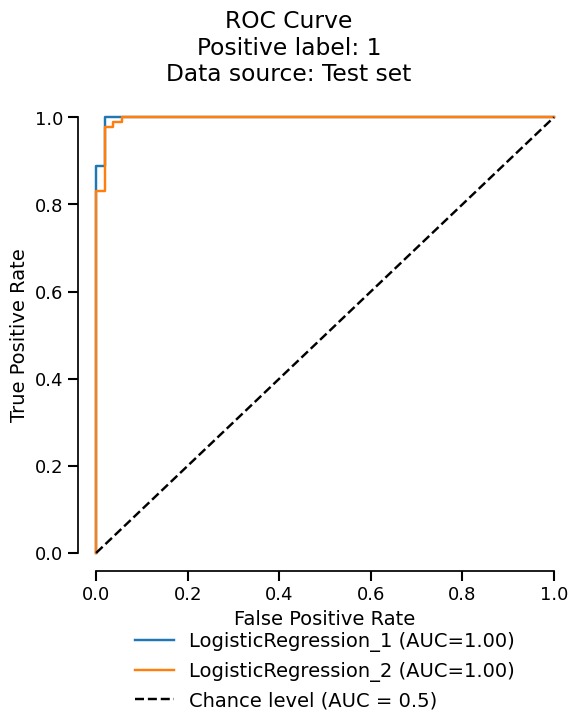
Use compare() to load the corresponding reports from the
project (optionally after filtering the summary). Passing return_as="report"
returns a ComparisonReport built from those reports.
reports = summary.query("log_loss < 0.2").compare(return_as="report")
len(reports.reports_)
3
Since we got a ComparisonReport, we can use the metrics accessor
to summarize the metrics across the reports.
reports.metrics.summarize().frame()
Conclusion#
Skore Hub provides a user-friendly interface for you to explore and compare models. You can easily store reports created using Skore.
Total running time of the script: (1 minutes 22.219 seconds)